
Introduction
The purpose of this post is to provide sufficient information to the user to understand the Accounting module of Odoo 15, 16, and 17 and keep their business accounting up to date.
This guide will only discuss the standard features of the Enterprise version; another post will cover the extra modules and functionalities provided by the localization modules offered by OCA.
Menu Description
In this first section, we show the different access points to the module menus in order of presentation, as well as a brief summary of the functionalities of each. In later posts, we will delve deeper into the characteristics of each option.
Important Note: The user should keep in mind that to view several of these menus, they must have sufficient permissions activated. Depending on the configuration of the accounting module and the complementary modules, the available options may vary.
Dashboard
The home screen of the accounting module is the dashboard. Accounting entries in Odoo are created in different journals. The dashboard provides us with an overview of the most used journals. We can determine which journals we want to see on the dashboard or configure each journal by clicking on the three dots of each box:
Customers
In the customers menu, we will find a specific submenu of accounting aspects related to our customers:
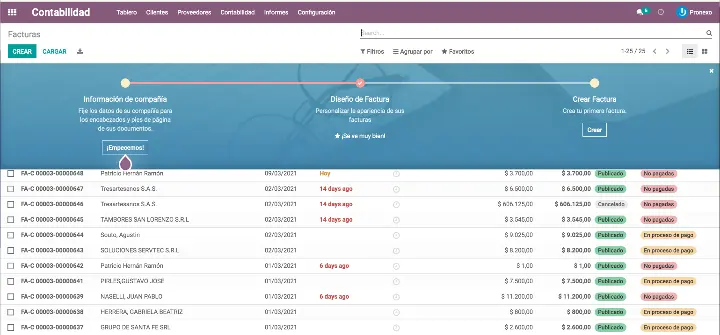
Invoices: In this menu, we can create and view all sales invoices.
Corrective invoices: In this menu we can create and consult all corrective invoices or credits.
Payments: Allows us to consult or create new transactions. We can view collections and payments depending on the filter used. Initially, we will not create transactions from here as we will only use the collection and payment order menus.
Batch payments: Allows for the processing of collection remittances and grouping checks to send to the bank.
Follow-up Reports: Displays pending receivables and allows sending follow-up letters and emails.
Direct debit mandates: Allows generating SEPA mandates that must be signed by clients to charge them bank receipts.
Products: This section shows us the list of products for which we have checked the box "Can be sold."
Clients: Displays the list of contacts we have specified as clients.
Suppliers
In the customers menu, we will find a specific submenu of accounting aspects related to our customers:
Invoices:In this menu we can create and consult all purchase invoices.
Returns:In this menu we can create and consult all corrective invoices or purchase credits.
Payments:Allows us to consult or create new transactions. We can view collections and payments depending on the filter used. Initially, we will not create transactions from here as we will only use the collection and payment order menus.
Batch payments:Allows for the processing of payment remittances and grouping effects into a check.
Products:This section shows us the list of products for which we have checked the box "Can be purchased."
Suppliers:Displays the list of contacts we have specified as suppliers.
Accounting
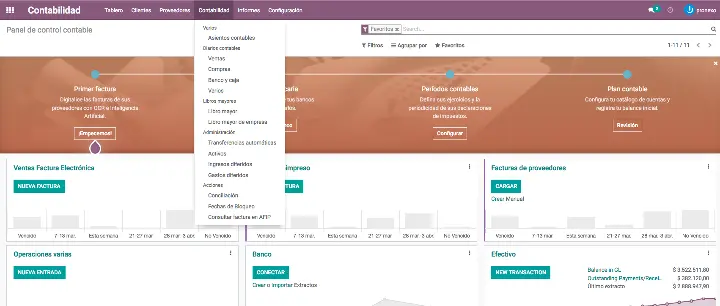
Accounting entries: Allows us to create or view accounting entries. We remember that an accounting entry is a set of accounting notes (accounting records) made in the accounting journal. The purpose of accounting entries is to record movements in a company's accounts.
Accounting journals: Sales, Purchases, Bank and cash, and Miscellaneous are simply lists of accounting records filtered by these journals and grouped by accounting entry.
General Ledger: List of accounting records grouped by account.
Company General Ledger: List of accounting records of type "Payable" or "Receivable" that are not reconciled, grouped by company.
Automatic transfers: Allows the creation of automatic entries to transfer a balance or a percentage of the balance from one accounting account to another periodically.
Assets: This is the menu from which assets and their amortization plans can be created and maintained.
Deferred revenues: Similar to the amortization plans of assets, it allows for the prorating of revenues.
Deferred expenses: Similar to the amortization plans of assets, it allows for the prorating of expenses.
Reconciliation: Access to pending bank transactions to be reconciled.
Blocking dates: Allows closing the accounting to changes based on role and date.
Reports

In this menu, we will find all the reports necessary to manage the company and present accounts and models to the tax authorities.
Odoo, in its Enterprise version, has a base localization for Argentina that is usually complemented by the OCA localization. In this publication, we will only refer to the base localization of the Enterprise version.
The reports, lacking some translations, are as follows:
Generic statements: Contains standard reports for all localizations.
Profit and loss: It is a report similar to the previous localization but without the specific Spanish design.
Balance sheet: It is a report similar to the previous localization but without the specific Spanish design.
Executive summary: Summary of the situation: Cash, Profitability, and some KPIs.
Cash flow statement: Cash flow report. Inflows and outflows.
Company reports: Contains standard reports for all localizations.
Company general ledger: Report type sums and balances by company (Initial balance-Debit-Credit-Balance).
Overdue receivables/payables: List of effects by companies pending reconciliation. Indicates the maturity of the debt and allows viewing invoices and reconciling.
Audit reports: Contains the usual management reports.
General ledger: General ledger by accounts.
Trial balance: List of accounts with debit/credit movements by period.
Consolidated journals: General ledger but instead of by account, by journal.
Tax report: Navigable report with base and rate by tax, separated by purchases and sales. Allows access to accounting entries with the audit button.
Book audit: List of accounting entries by journal in PDF.
Argentinian Reports:
Sales VAT Book
Purchases VAT Book